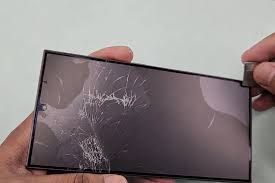
First: What Type of "Won't Turn On" Is This?
The fix depends on what you're actually seeing. Identify your situation first:
- Completely black screen, no response at all — dead battery or crashed system (most common, most fixable)
- Black screen but phone vibrates, makes sounds, or shows charging icon — the phone works, only the screen is damaged
- Stuck on Apple logo loop — software crash or iOS corruption
- Stuck on "Connect to iTunes" screen — recovery mode needed
- Got wet recently, now won't turn on — water damage, treat as urgent
Work through the fixes below in order. The earlier fixes cover the most common causes.
Fix 1: Charge It First (Properly)
The most common reason an iPhone appears completely dead is a fully drained battery. When a lithium battery is depleted to 0%, the phone won't turn on — even pressing the power button shows nothing at all.
What to do: Plug the iPhone into a charger using a known-good Lightning or USB-C cable and a wall adapter (not a laptop USB port, which may not supply enough power). Leave it for at least 15–20 minutes before trying to power it on. You should see a low-battery charging screen appear after a few minutes.
If the charging screen doesn't appear after 20 minutes, try a different cable and adapter. Cables fail far more often than people expect — a visually intact cable can have a broken internal wire.
Fix 2: Force Restart the iPhone
iPhones can crash in a state where the screen stays black and the normal power button doesn't respond. A force restart bypasses the software state entirely and forces a hardware reboot.
iPhone 8, iPhone SE (2nd/3rd gen), iPhone X and newer (including all iPhone 11–16)
- Press and quickly release the Volume Up button
- Press and quickly release the Volume Down button
- Press and hold the Side button until the Apple logo appears (up to 10 seconds)
iPhone 7 / 7 Plus
- Press and hold both the Volume Down button and the Sleep/Wake button simultaneously
- Hold for 10 seconds until the Apple logo appears
iPhone 6s, SE (1st gen) and older
- Press and hold both the Home button and the Sleep/Wake button simultaneously
- Hold for 10 seconds until the Apple logo appears
This fix resolves a significant portion of "black screen" iPhones that otherwise seem completely dead.
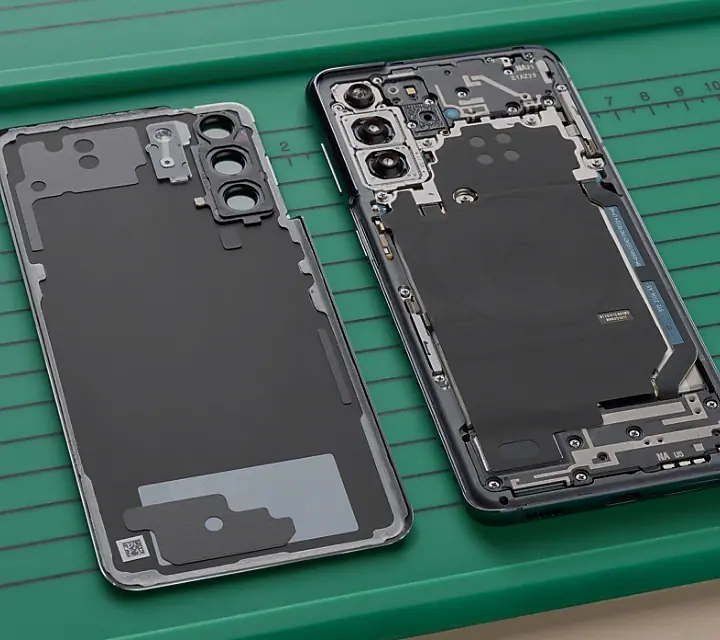
Fix 3: Try a Different Cable and Charger
If the force restart didn't work and you haven't verified the charger, do this now. Use a different cable, a different wall adapter, and if possible plug into a different outlet. Cheap or uncertified cables often don't deliver consistent power and can fail intermittently.
Test to run: Plug in a known-working device with the same cable to confirm the cable actually delivers charge. If it doesn't charge another device either, the cable is the problem.
Fix 4: Check for Physical Screen Damage
If your iPhone makes sounds, vibrates when you plug it in, or the charging icon appears briefly — the phone itself is running. The screen may be damaged, even if it isn't visibly cracked.
A phone that was dropped can have internal screen damage with no visible crack — the impact can detach or damage the display connector inside the phone. The fix is a screen replacement, not a board repair. This is a much faster and cheaper repair.
Quick test: Press the Home button (or side button on newer models) and try to unlock it as if the screen were working. If Siri activates via voice, you hear the camera shutter, or the phone responds to gestures, the screen is the problem.
Fix 5: Restore via iTunes or Finder (Recovery Mode)
If the phone is stuck in a boot loop (keeps trying to restart) or shows the "Connect to iTunes" screen, you can restore it via a Mac or PC.
- On your computer, open Finder (Mac) or iTunes (Windows)
- Put the iPhone into Recovery Mode using the same button sequence as a force restart (but keep holding the Side button after the Apple logo until the recovery mode screen appears)
- Choose Restore in Finder/iTunes — this will reinstall iOS and may fix the issue
Warning: A Restore will erase all data on the phone. If you have an iCloud or iTunes backup, your data can be recovered after the restore. If you don't have a backup, don't restore — bring it to a technician who may be able to recover data first.
Fix 6: Check for Water Damage
If the iPhone was near water recently — even briefly, even if it seemed "fine" afterward — water damage can cause delayed power-on failures. Corrosion builds up on the circuit board and eventually causes the phone to fail to boot.
Check the SIM tray opening. Inside, there's a Liquid Contact Indicator (LCI) — a small dot that turns red if water reached the internals. If it's red, the phone was water-damaged.
Water damage repair at Fixtronics starts from $49. The sooner you bring it in, the better the outcome.
Fix 7: Let the Battery Deep-Discharge and Recharge
In rare cases, iPhones with very degraded batteries can get stuck in a state where the battery is reporting incorrect charge levels, causing the phone to refuse to boot. The fix: leave the phone completely unplugged for 2–3 hours (letting any residual charge drain completely), then plug in for a full uninterrupted 2-hour charge before attempting to turn it on.
If this fixes the issue temporarily but the problem recurs, the battery needs replacement. A battery below 70% capacity can cause exactly this behavior.
When None of These Work: What It Usually Means
If you've worked through all 7 fixes and the iPhone still won't turn on, the underlying cause is almost always one of these hardware issues:
| Likely Cause | Fixtronics Price | Turnaround |
|---|---|---|
| Dead / swollen battery | From $59 | 30–45 min |
| Damaged screen (phone works, screen doesn't) | From $79 | 20–40 min |
| Water damage / board corrosion | From $49 | Same-day |
| Logic board / power IC failure | Call for quote | 1–2 days |
At Fixtronics, the diagnosis is always free. Walk in — we'll test the phone and tell you exactly what's wrong and what it'll cost before any work starts.
iPhone still won't turn on? Free diagnosis at Fixtronics
Near Penn Station in Midtown Manhattan. Walk in any day 10 AM – 11 PM. Battery from $59, screen from $79 — same-day repair, no appointment needed.